


October 19, 2025, 3:32 pm | Read time: 5 minutes
Doctor’s letters, medication plans, lab results, X-rays, all collected in one place: This is the core idea behind the electronic patient record, or ePA. On April 29, the electronic patient record was introduced nationwide. But how do you set it up? FITBOOK explains it to you.
The ePA can be imagined as a digital, lifelong file folder for health data, according to the consumer center.1 Both medical practices and insured individuals can store documents in it—such as doctor’s letters, medication plans, lab results, or X-rays. This is intended to simplify, for example, changing doctors or facilitate the exchange of documents between medical practices, pharmacies, and clinics.
Set Up Electronic Patient Record (in the App)
Step 1 – Download the App
It’s important to know: Each health insurance company offers its own ePA app. If you don’t know the name of this app, you can find it in a list from Gematik, the national agency for digital medicine.
To ensure the ePA app runs on your device, certain requirements must be met: According to the consumer center, you need a smartphone or tablet with an operating system of at least Android 9 or iOS 16. The ePA app can also be used on a desktop PC or laptop if a card reader of security class 2 with its own keyboard is available.
Step 2 – Apply for the Patient Record with the Health Insurance
To use the electronic patient record, you must register with your health insurance for its use. The identification and registration process may vary slightly from one insurer to another.
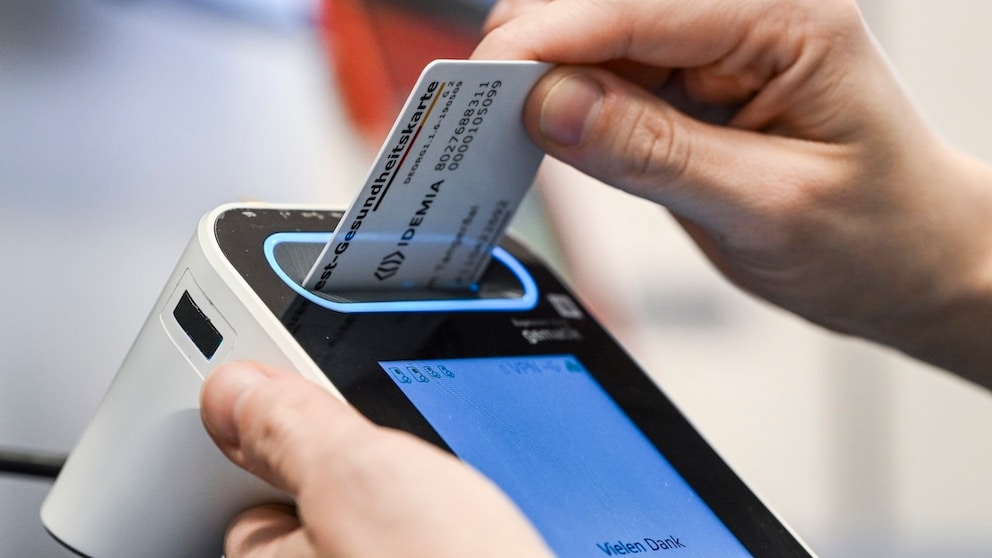
According to the consumer center, this registration and login require an NFC-enabled health card and the associated PIN or a health ID.
By the way: An NFC-enabled health card can be recognized by the contactless logo and the six-digit so-called CAN number under the German flag colors. If you still have an old card without this function, you can request a new one from your health insurance.
Step 3 – Register in the App
Now you can register in the app. Since sensitive health data is stored in the ePA, the login must be particularly secure. According to Gematik, there are two ways: If you have a new NFC-enabled health card with a PIN, you can use it for registration.
Alternatively, there is also the option of two-factor authentication. The first factor is device binding, meaning the app only runs on one device. Additionally, a second factor ensures security, such as a biometric key like FaceID on Apple devices.
Step 4: Have the Patient Record Filled and Set Access Rights
After setting it up, you can now ask your doctor’s office to store current findings, doctor’s letters, and lab values or even older documents in the electronic patient record. By the way: Maternity records, vaccination cards, and dental bonus booklets can also be stored there in digital form.
The ePA can also be filled by the patient themselves. Doctor’s letters that you only have on paper can be scanned and uploaded. And: You can specify in the app whether you want to grant specific medical practices, hospitals, or pharmacies access to certain documents in the ePA, according to Gematik.
You can also set the permission to be valid only for a specific period—for example, only for the day you have a doctor’s appointment, according to the consumer center.
How to Use the Electronic Patient Record on the Computer
If you prefer to manage your electronic patient record (ePA) on a PC rather than via smartphone, you can do so conveniently with the Desktop Client.2
What is the Desktop Client?
The Desktop Client is the PC version of the ePA. Users can digitally store, retrieve, and manage doctor’s letters, findings, diagnoses, or vaccination documents here.
How to Set Up the Desktop Client
Download the Desktop Client from the Microsoft Store (Windows) or Mac App Store. Your health insurance will provide step-by-step instructions for the initial installation and setup.
For Use, You Need:
- Your electronic health card (eGK) with PIN,
- a card reader connected to your PC (e.g., via USB),
- a valid email address for registration.
Ensure that the card reader supports G2 or G2.1 cards and is recommended by Gematik or the Federal Printing Office.
Registration Without a Card Reader: the Web2App Flow
Alternatively, the ePA can also be accessed without a card reader, via the so-called Web2App Flow.
How It Works:
- Open the Desktop Client and scan the QR code displayed there with the AOK Ident app on your smartphone.
- Confirm the registration and enter the security code sent via email.
- Your device is then immediately activated.
Update the Client
If you have been using the Desktop Client for a while, you should switch to the new record system. The transition is straightforward and is described in a PDF guide, such as on the AOK website.
With material from dpa